


Web sitesinde Gate hesabınızı Kimlik Doğrulayıcıya nasıl bağlarsınız:
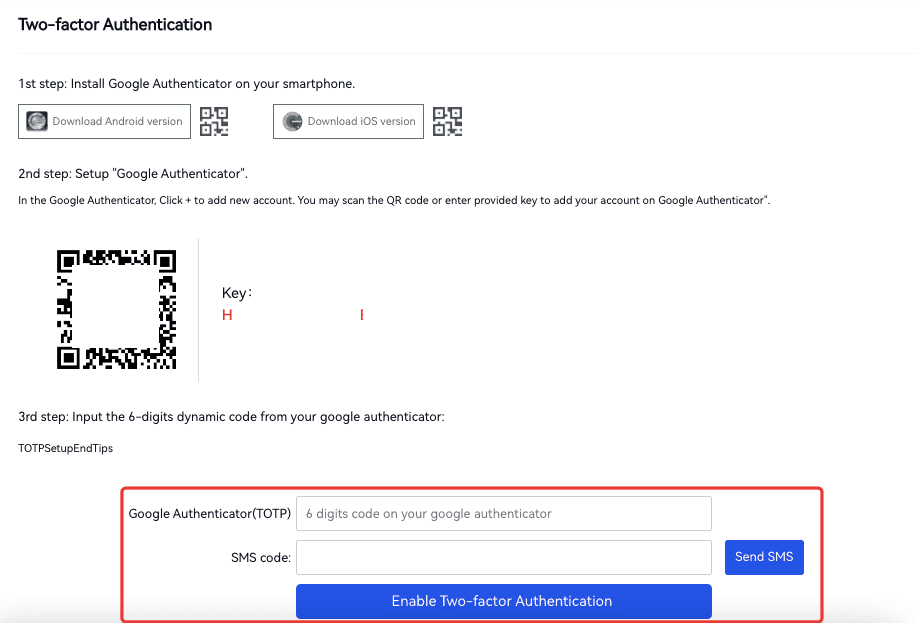
Google Authenticator ve Gate Authenticator, Gate için geçerli olan iki tek doğrulayıcıdır. Onları indirmek için telefonunuzda QR kodunu tarayın veya uygulama mağazanızda arayın. Kurulumdan sonra uygulamayı açın. (Bu kılavuzda örnek olarak Gate Authenticator kullanılmıştır) Doğrulayıcıyı devre dışı bırakmak isteyebileceğiniz üç senaryo vardır:
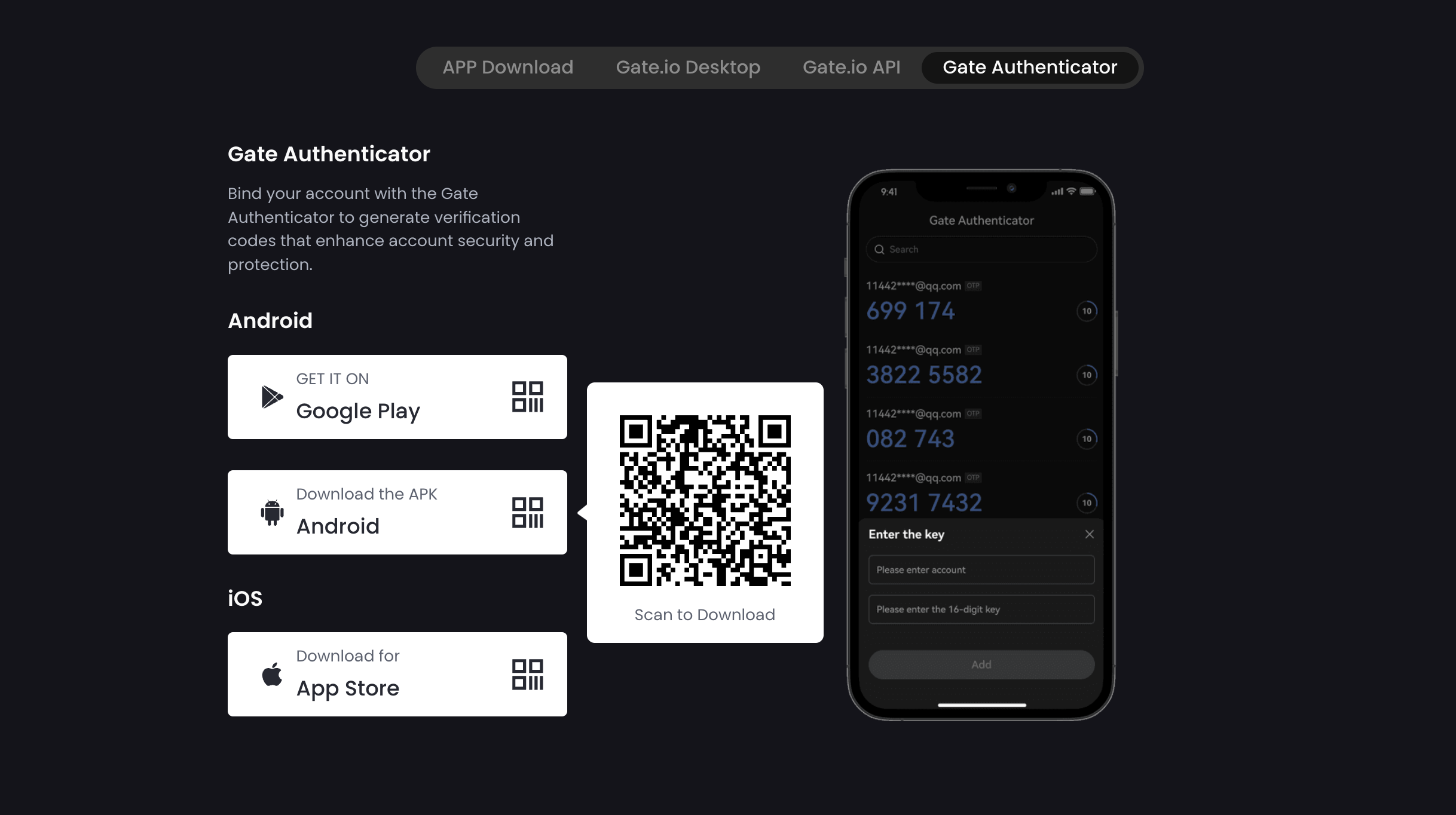
① “QR kodunu tarayın”.
② "Kimlik doğrulayıcınızı sıfırlayın". Kullanıcı adınızı ve anahtarı girin.
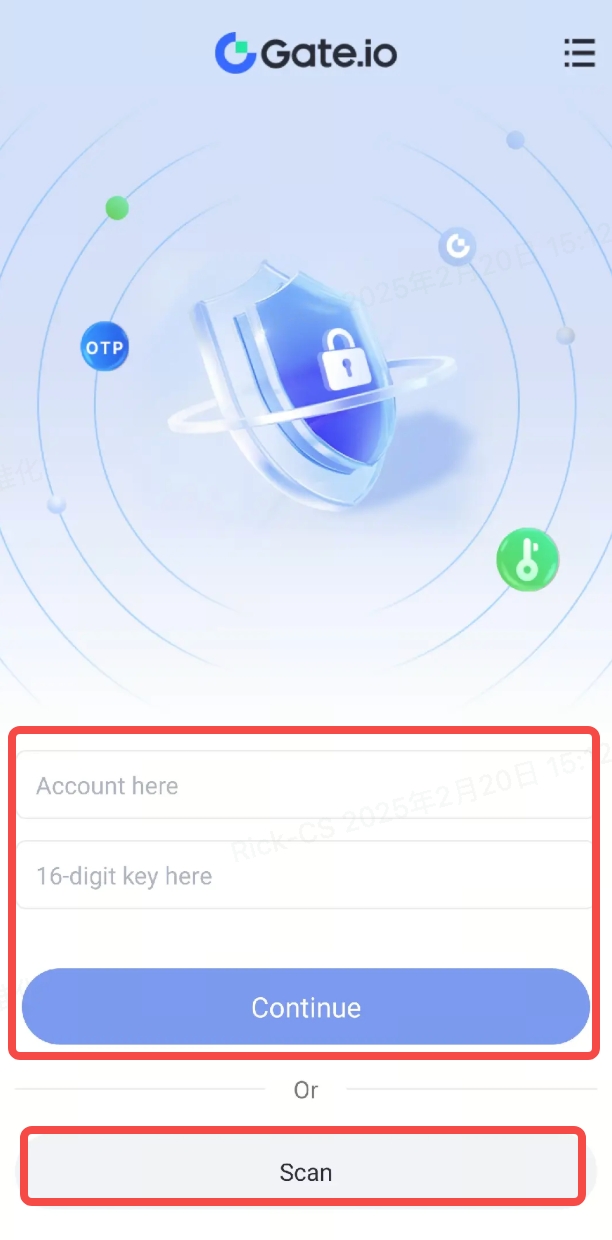
(Not: QR kodunu bulmak ve anahtarı kopyalamak için Gate web sitesini açın ve sağ üstteki profil simgesine tıklayın. "Güvenlik Ayarları" na gidin - "İki faktörlü kimlik doğrulama" - "Hemen bağlama" - "Buraya tıklayın".) Artık QR kodunu tarayabilir veya anahtarı Google/Gate Authenticator'a kopyalayabilirsiniz.
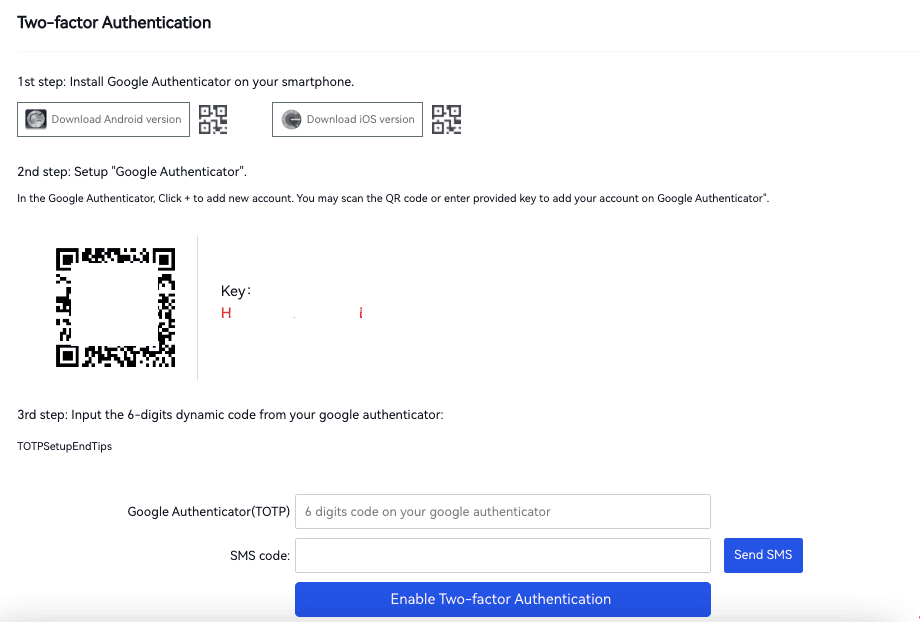
QR kodunu taradıktan veya anahtarı girdikten sonra telefon ekranınızda 6 haneli bir kod göreceksiniz. Bu kod bir defalık doğrulama kodudur.
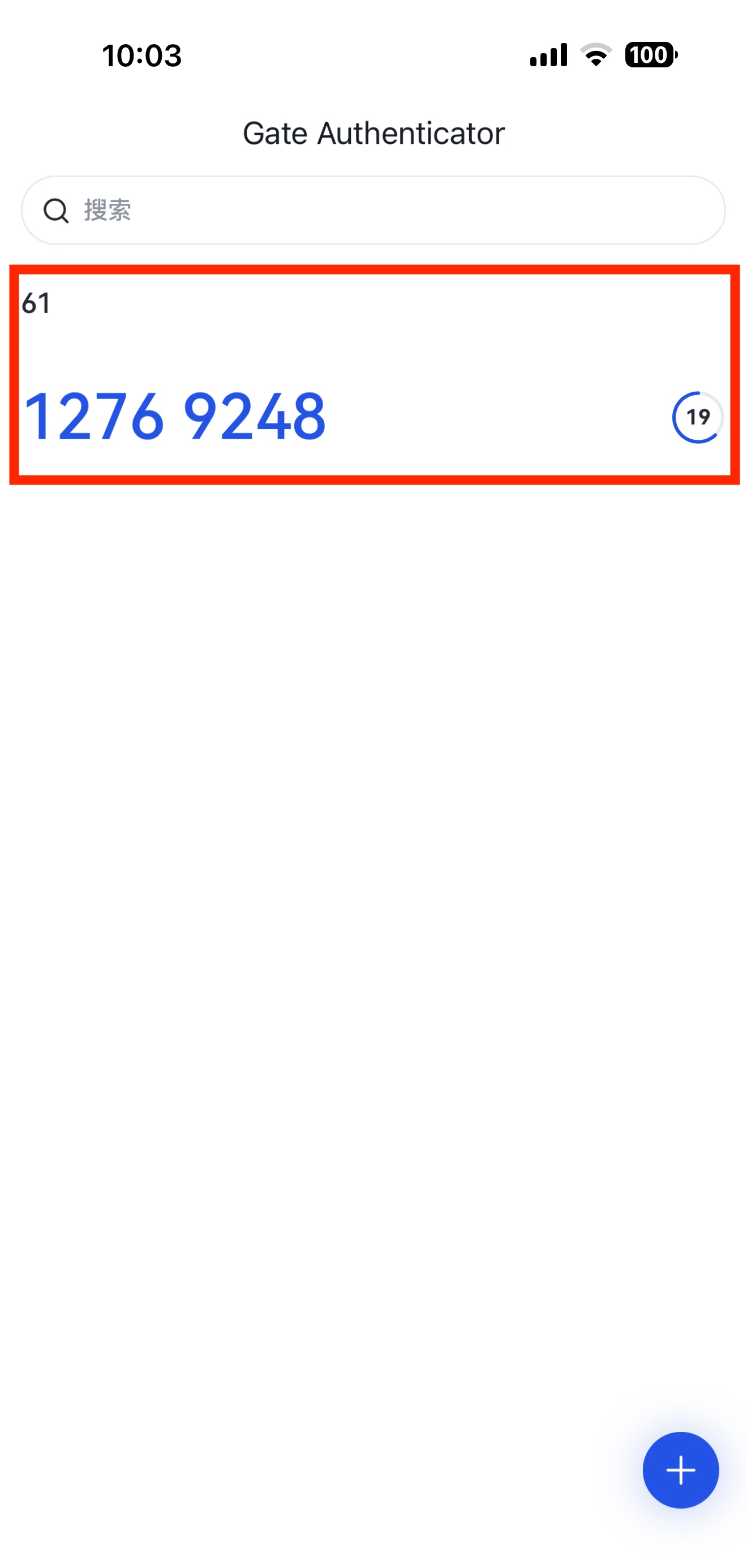
Şimdi, 8 basamaklı kodu TOTP olarak girin. Fon şifrenizi ve bir e-posta doğrulama kodunu girin ve işte hepsi bu.
Gate hesabınızı uygulamadaki Kimlik Doğrulayıcıya nasıl bağlarsınız:
Google Authenticator ve Gate Authenticator, Gate için yalnızca geçerli iki doğrulayıcıdır. Onları indirmek için telefonunuzdaki QR kodunu tarayın veya uygulama mağazanızda arayın. Kurulumdan sonra uygulamayı açın. (Bu öğretici için Gate Authenticator örneği olarak)
Gate kullanıcı adınızı ve anahtarınızı girin. Daha sonra “Devam”a tıklayın.
(Not: Anahtarı kopyalamak için, Gate mobil uygulamasını açın ve sol üst köşedeki profil simgesine tıklayın. "Güvenlik Merkezi"ne gidin - "Google/Gate Authenticator (doğrulanmamış)" - "Anahtarı Kopyala"'ya gidin.)
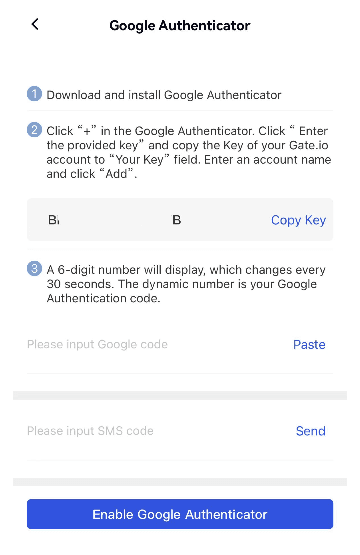
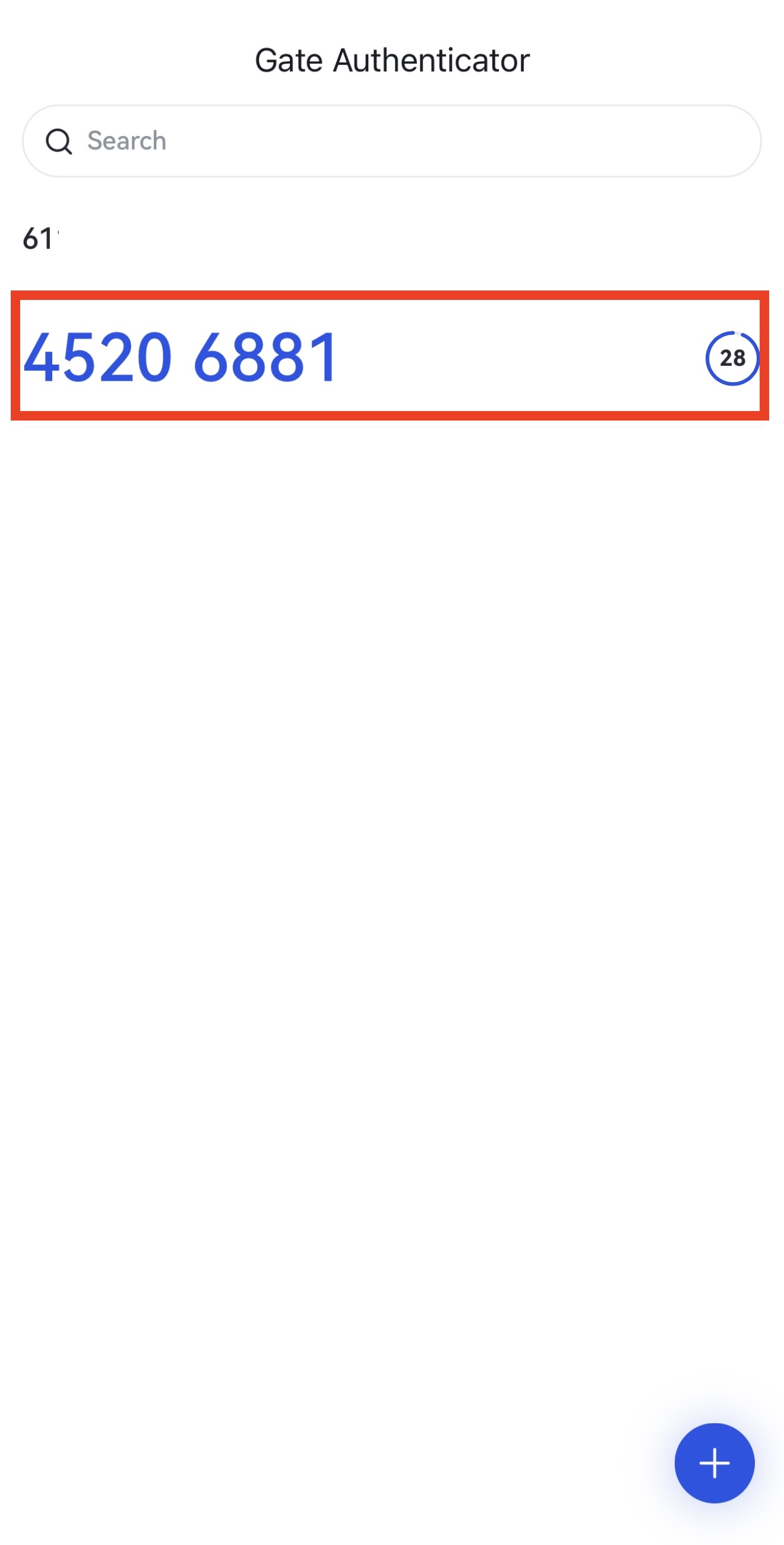
Anahtarı girdikten ve "Devam" düğmesine tıkladıktan sonra telefon ekranınızda 8 haneli bir kod göreceksiniz. Bu kod, tek kullanımlık bir doğrulama kodudur.
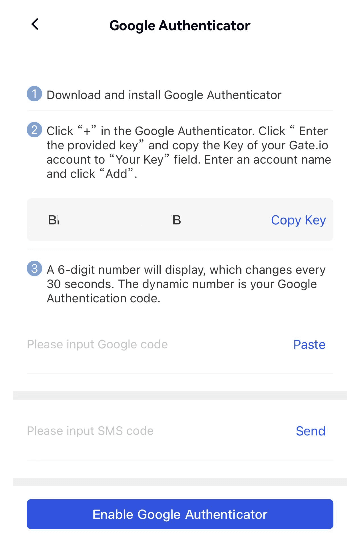
Gate mobil uygulamasını tekrar açın ve en üst sol köşedeki profil simgesine tıklayın. "Güvenlik Merkezi"ne gidin - "Google/Gate Kimlik Doğrulayıcı (doğrulanmamış)". Kodu, e-posta doğrulama kodunu ve fon şifrenizi girin ve onaylayın.
Kimlik Doğrulamayı nasıl devre dışı bırakabilirim
Authenticator'ı devre dışı bırakmak isteyebileceğiniz iki senaryo bulunmaktadır:
-
Google/Gate kimlik doğrulama kodunu almakta sorun yaşamadığınızda, hesabınıza giriş yapabilir ve Gate web sitesinde veya uygulamasında "güvenlik merkezi"ne giderek Kimlik Doğrulayıcıyı devre dışı bırakabilirsiniz.
-
Telefonunuzu kaybettiğiniz veya Kimlik Doğrulama'yı kaldırdığınız durumlarda Google/Gate kimlik doğrulama kodunu alamazsınız, bu durumda Gate kullanıcı adınızı (veya Kimlik), e-posta adresinizi, yasal adınızı, kayıtlı olduğunuz şehri, işlem yaptığınız para birimlerinin isimlerini, Kimliğinizi tutarken çekilmiş bir fotoğrafı ve Gate kullanıcı adınızı içeren bir kağıt parçasını (kağıt notunda ayrıca yaşadığınız sorunun bir açıklaması, hesabınıza bağlı telefon numarası ve bu kağıt notunun yazıldığı zamanın bulunması gerekmektedir). Bu bilgileri ve materyalleri support@gate.com adresine bir e-posta göndererek veya Gate web sitesinde bir destek talebi göndererek iletebilirsiniz.
Authenticator Nasıl Sıfırlanır:
Not: Hesabınıza giriş yapamıyorsanız ve hesabınızla ilişkilendirilmiş Kimlik Doğrulayıcı'yı devre dışı bırakmak istiyorsanız, bir destek talebi göndermek dışında, güvenlik eşyası sayfası üzerinden de başvuru yapabilirsiniz ve başvurunuz 1-3 iş günü içinde incelenecektir.
Güvenlik eşyası sayfası bağlantısı: https://www.gate.com/security_reset
Not:
-
Authenticator, sık sık giriş yaparken, para çekerken, şifreleri sıfırlarken ve diğer güvenlik ayarlarını ayarlarken kullanılır. Bazen SMS aracılığıyla doğrulama kodları alamazsanız, Authenticator'ı kullanmanız önerilir.
-
Bu hesaplarda işlem yaparken gereksiz sorunları önlemek için Google/Gate doğrulayıcı kodlarındaki hesapları silmeyin. Telefonunuzu kaybettiyseniz veya Google/Gate doğrulayıcı kodlarını kaldırdıysanız, lütfen destek@mail.Gate adresinden yöneticiyle iletişime geçin.
-
Eğer Google/Gate doğrulayıcı kodunun hatalı olduğu bildirilirse, lütfen telefonunuzun ağ zamanına senkronize olduğundan emin olun.
